How to Clean Robot Vacuum Sensors: Fix Navigation Problems in Minutes
How to clean robot vacuum sensors — step-by-step guide for all sensor types to fix navigation errors, spinning, and getting stuck issues.
Table of Contents
- Tools You Will Need
- Understanding the Sensor Types on Your Robot Vacuum
- 1. Cliff Sensors (Bottom of the Robot)
- 2. Bumper Sensors (Front of the Robot)
- 3. LiDAR Sensor (Top Turret)
- 4. Wall Sensors (Side of the Robot)
- 5. Charging Contacts
- 6. Camera and Optical Sensors (If Equipped)
- How Often Should You Clean Robot Vacuum Sensors?
- Troubleshooting: Which Navigation Problem Points to Which Sensor?
- Frequently Asked Questions
- Final Thoughts
- Top Picks
Is your robot vacuum spinning in circles, refusing to leave its dock, bumping into walls it should know are there, or drawing a completely wrong map of your home? Before you call customer support or order a replacement, there is a very good chance the fix takes less than two minutes and costs nothing. Dirty sensors are the single most common cause of robot vacuum navigation problems — and most owners never think to clean them.
Modern robot vacuums rely on a network of optical, infrared, and laser sensors to see the world around them. Unlike the mechanical parts of a vacuum (brushes, filters, motors), sensors have no moving components to wear out. They do, however, have small lenses and windows that collect dust, pet hair, and grime at an alarming rate — especially on a machine that spends its life crawling across dirty floors. A thin film of dust over a cliff sensor is enough to make your robot think there is a drop-off everywhere it goes. A smudged LiDAR turret can corrupt the entire map of your home. The good news: cleaning these sensors requires no tools beyond what is already in your home, takes about two minutes per cleaning session, and immediately restores full performance in the vast majority of cases.
This guide walks you through every sensor type found on robot vacuums, explains exactly what each one does, describes the navigation failures a dirty version causes, and gives you a step-by-step cleaning process for each one.
Tools You Will Need
You do not need any special equipment. Before you start, gather:
- A dry microfiber cloth — the most important tool. Microfiber lifts dust and oils without scratching the sensor lenses. Never use paper towels; they are abrasive enough to leave micro-scratches that scatter light and permanently degrade sensor performance.
- Compressed air (canned air) — for blowing dust out of recessed sensor cavities that a cloth cannot reach. Hold the can upright and use short bursts.
- Cotton swabs (Q-tips) — for cleaning the small, recessed windows of cliff sensors and charging contacts where a cloth cannot get proper contact.
- Isopropyl alcohol (70% or higher), optional — for stubborn smudges on smooth sensor windows. Apply to the cloth or swab, never directly to the robot. Use sparingly and allow to dry completely before running the robot.
Do not use water, all-purpose sprays, or any liquid cleaner directly on the robot. Do not use abrasive pads, rough cloths, or dry tissues.
Understanding the Sensor Types on Your Robot Vacuum
Not every robot vacuum has every sensor type listed below. Budget models rely primarily on infrared cliff sensors and a basic bumper. Mid-range and premium models add LiDAR, cameras, structured light, and ultrasonic sensors. Check your model’s manual if you are unsure which sensors your robot has — but cleaning the ones that are present costs nothing and takes seconds.
1. Cliff Sensors (Bottom of the Robot)
What They Do
Cliff sensors are infrared emitters and receivers mounted on the underside of the robot, typically near the front edge and sometimes along the sides. They work by bouncing an infrared beam off the floor and measuring how long the reflection takes to return. When the robot approaches a stair edge or any significant drop-off, the beam returns slowly (or not at all), and the robot stops and reverses.
These sensors are non-negotiable safety features. Without working cliff sensors, a robot vacuum will drive straight off a staircase.
What Happens When They Get Dirty
Because cliff sensors face downward toward the floor, they collect dust and debris constantly. A layer of dust over the sensor window scatters the outgoing infrared beam, causing false readings. Common symptoms of dirty cliff sensors include:
- The robot spins in place repeatedly without moving forward
- The robot refuses to leave the charging dock entirely
- The robot stops suddenly on flat ground for no apparent reason
- The robot turns away from dark-colored floors or rugs (very dark surfaces absorb infrared and can be misread as drop-offs even with clean sensors — but dirty sensors make this far worse)
- Error messages like “cliff sensor error” or “please move to a new location”
How to Clean Cliff Sensors
- Power off the robot and flip it upside down on a soft surface like a folded towel.
- Locate the small circular or oval windows on the underside — typically two to four windows near the front edge. They may be slightly recessed into the plastic.
- Use a dry cotton swab and gently rub the surface of each sensor window in a circular motion. You will often see a visible streak of brown or grey dust on the swab.
- If the windows are recessed too deeply for a swab, use a short burst of compressed air to dislodge dust, then follow with the cotton swab.
- For oily smudges (from contact with greasy floors), dampen a fresh cotton swab very lightly with isopropyl alcohol and clean again.
- Inspect each window — it should look clear, like a tiny clean lens.
2. Bumper Sensors (Front of the Robot)
What They Do
The front bumper on a robot vacuum is more than just a physical cushion — it contains sensors (usually infrared or mechanical contact sensors) that detect when the robot has made contact with an obstacle. On robots without full LiDAR, the bumper is how the robot “sees” furniture, walls, and objects in its path: it bumps gently, the sensor registers contact, and the robot steers around the obstacle.
On robots with LiDAR, the bumper sensor serves as a backup for objects the laser cannot detect (such as very thin chair legs or transparent surfaces) and for precise navigation along edges.
What Happens When They Get Dirty
The bumper itself accumulates dust and grime in the gap between the bumper panel and the robot body. If infrared sensors inside this gap become obstructed, the robot receives false obstacle signals. Symptoms include:
- Random stopping and turning even in open spaces
- The robot behaving as if it is constantly hitting something when it is not
- Unusual zig-zag paths across open floor areas
- A physical bumper that feels sticky or does not spring back cleanly when pressed
How to Clean Bumper Sensors
- With the robot powered off, locate the gap running along the front bumper panel.
- Use a can of compressed air to blow dust out of the gap along the entire length of the bumper. Hold the nozzle about two centimeters from the gap and use short bursts while working along the full arc.
- Press the bumper inward gently with your fingers and release it several times. It should move freely and spring back with a crisp snap. If it feels stiff or gritty, that friction is interfering with the sensor’s ability to register soft contact.
- Wipe the outer surface of the bumper with a dry microfiber cloth.
- If your model has visible infrared windows on the front face (small dark or clear oval ports), wipe these gently with a cotton swab.
3. LiDAR Sensor (Top Turret)
What They Do
LiDAR (Light Detection and Ranging) is the spinning turret on top of mid-range and premium robot vacuums — the brands that create detailed room maps, support no-go zones, and allow you to send the robot to specific rooms. The turret spins continuously while the robot runs, firing thousands of laser pulses per second in a 360-degree sweep. By measuring how long each pulse takes to bounce back, it builds a precise real-time map of the room.
LiDAR is the most sophisticated sensor on a robot vacuum, and it is also one of the most exposure-prone — the transparent dome or window on top of the turret is at room height, where it catches floating dust, cooking grease, pet dander, and anything else suspended in the air.
What Happens When It Gets Dirty
Because the LiDAR fires laser pulses through a transparent window, even a thin haze on that window degrades the signal dramatically. The sensor may still appear to function, but the data quality drops. Symptoms include:
- The robot’s map becoming progressively less accurate over weeks or months
- Rooms appearing merged or split incorrectly on the map
- The robot getting stuck in areas it previously navigated confidently
- Increased collision frequency even in familiar environments
- Error messages related to mapping failure or “sensor blocked”
How to Clean the LiDAR Sensor
- Power off the robot completely.
- Locate the top turret — it is the raised cylindrical assembly on top of the robot, usually with a transparent dome, ring, or strip of clear plastic.
- Gently wipe the entire transparent surface with a dry microfiber cloth. Use light circular pressure — do not press hard enough to flex the dome inward.
- If there is visible haze or smudging that does not clear with dry wiping, lightly dampen the cloth with isopropyl alcohol and wipe again. Follow with a dry wipe.
- Do not spin the turret by hand forcefully. If you need to clean the back side, rotate it very gently by hand — most LiDAR turrets can be rotated manually when powered off.
- After cleaning, power on the robot and run a full mapping session to refresh the stored map.
4. Wall Sensors (Side of the Robot)
What They Do
Wall sensors (also called side sensors or proximity sensors) are infrared sensors on the sides of the robot, usually on the same side as the side brush. They allow the robot to follow walls and furniture edges at a consistent close distance — crucial for the thorough edge cleaning pass that starts most cleaning cycles. Without working wall sensors, the robot cannot maintain the precise gap needed to sweep debris into its path with the side brush.
What Happens When They Get Dirty
Since side sensors face the baseboards and furniture legs — some of the dustiest real estate in a home — they accumulate debris quickly. Symptoms of dirty wall sensors include:
- The robot missing wall edges and leaving visible strips of uncleaned floor along baseboards
- The robot hugging walls too aggressively and scraping furniture
- Poor edge cleaning performance despite a working side brush
How to Clean Wall Sensors
- Power off the robot and look along the sides of the body for small sensor windows — they are often on the lower half of the side panel.
- Wipe each window with a dry cotton swab or a folded corner of a microfiber cloth.
- Use compressed air to clear any dust packed into the crevice around the sensor housing.
- Inspect that the sensor window is clear and unobstructed.
5. Charging Contacts
What They Do
The charging contacts are metal pads on the underside of the robot (and matching pads on the dock) that transfer power when the robot docks. While they are not navigation sensors, dirty contacts are one of the most common reasons a robot vacuum fails to charge — and a robot that cannot charge cannot clean.
What Happens When They Get Dirty
Oxidation, dust, and debris build up on the metal contacts and create electrical resistance. Symptoms include the robot sitting on the dock without charging, the charging indicator failing to light up, or the robot repeatedly re-docking because the charge is not registering.
How to Clean Charging Contacts
- Power off the robot. Flip it over to access the contacts on the bottom.
- Wipe the metal contact pads firmly with a dry microfiber cloth to remove oxidation and debris.
- If the contacts appear tarnished or dark, apply a small amount of isopropyl alcohol to a cloth and scrub gently. The alcohol removes oxidation effectively.
- Clean the corresponding contacts on the charging dock with the same method.
- Allow everything to dry completely before docking the robot.
6. Camera and Optical Sensors (If Equipped)
What They Do
Some robot vacuums (particularly those marketed as “camera navigation” or “AI obstacle avoidance” models) use downward-facing cameras for floor mapping, upward-facing cameras for ceiling landmark navigation, or forward-facing cameras for object recognition. These optical sensors have glass or plastic lenses that are highly sensitive to smudging.
How to Clean Camera Sensors
- Locate the camera lens — it may be on the top surface, front face, or underside of the robot depending on the model.
- Use only a dry microfiber cloth or a lens-cleaning cloth (the type used for eyeglasses or phone screens). Never use rough materials.
- Wipe in gentle circular motions. Do not apply pressure.
- For persistent smudges, use a tiny amount of isopropyl alcohol on the cloth.
How Often Should You Clean Robot Vacuum Sensors?
The right cleaning frequency depends on your home environment:
- Every 1–2 weeks — homes with pets, high dust levels, carpeted floors, or frequent use
- Monthly — average homes with moderate traffic and hard floors
- After any navigation error or unusual behavior — regardless of when you last cleaned
The entire sensor-cleaning routine takes under five minutes once you know where all the sensors are on your specific model. Adding it to your regular filter-emptying routine is the easiest approach — if you are already holding the robot to empty the dustbin, take 90 extra seconds to wipe the cliff sensors and LiDAR dome.
Troubleshooting: Which Navigation Problem Points to Which Sensor?
| Symptom | Most Likely Sensor |
|---|---|
| Spinning in circles, won’t move forward | Cliff sensors |
| Won’t leave the dock at all | Cliff sensors |
| Randomly stopping and reversing on flat ground | Cliff sensors or bumper sensors |
| Constantly bumping into furniture it should avoid | LiDAR sensor |
| Map becoming inaccurate over time | LiDAR sensor |
| Poor edge/wall cleaning | Wall sensors |
| Won’t charge on the dock | Charging contacts |
| Getting stuck in previously easy areas | LiDAR or cliff sensors |
| Erratic, unpredictable path in open space | Bumper sensors |
Frequently Asked Questions
How do I know if my robot vacuum sensors are dirty? The most reliable sign is a sudden change in behavior — a robot that previously navigated well starting to spin, getting stuck, or drawing an inaccurate map. If the robot was working fine and has now developed navigation issues without any physical damage or software changes, dirty sensors are the first thing to rule out.
Can I use a damp cloth to clean robot vacuum sensors? A slightly damp cloth (not wet) with water is generally safe for external plastic surfaces but should be avoided on sensor lenses themselves. Use isopropyl alcohol on a cloth or swab for sensor windows specifically — it evaporates cleanly without leaving residue.
My robot vacuum still spins in circles after cleaning the cliff sensors. What else could cause this? If cleaning the cliff sensors does not resolve the spinning behavior, check whether the robot is operating on a very dark floor or rug. Dark surfaces can absorb infrared signals and trigger false cliff readings. Most robot vacuums have a “dark floor mode” or reduced cliff sensitivity setting in the app. If neither cleaning nor this setting resolves the issue, the sensor itself may be faulty and warrant a warranty claim or replacement.
How do I clean sensors on a Roomba specifically? iRobot Roomba models have cliff sensors on the underside (typically four) and a front camera or structured light sensor depending on the model. The cleaning process is identical to what is described above — cotton swab on cliff sensor windows, microfiber cloth on any camera or optical surfaces, compressed air in the bumper gap. iRobot’s own support documentation recommends monthly cleaning as a minimum.
Will cleaning the sensors erase my robot’s map? No. Maps are stored in the robot’s internal memory or the companion app and are not affected by sensor cleaning. After cleaning the LiDAR dome, however, it is a good idea to run a fresh mapping clean so the robot can rebuild its map with improved sensor data.
How long does sensor cleaning take? A thorough cleaning of all sensor types on a typical robot vacuum takes three to five minutes. A quick maintenance wipe of the cliff sensors and LiDAR dome — the two highest-impact sensors — takes under two minutes.
My robot vacuum’s navigation was never great even when new. Are the sensors at fault? If the robot has always navigated poorly, dirty sensors are unlikely to be the sole cause. Budget robots with basic bump-and-go navigation (no LiDAR, no map) simply have less sophisticated navigation by design. Cleaning will still improve their performance, but setting expectations based on the sensor technology in your specific model is important.
Final Thoughts
Sensor cleaning is the most underrated maintenance task for robot vacuum owners. Manufacturers spend enormous resources developing sophisticated sensor arrays to give these machines genuine spatial awareness — but those sensors can only perform as well as their lenses are clean. A two-minute wipe with a microfiber cloth and a cotton swab restores that performance instantly.
The next time your robot vacuum starts behaving erratically, resist the urge to factory reset it, reinstall the app, or order a replacement. Flip it over, check the cliff sensor windows, wipe the LiDAR dome, clear the bumper gap, and clean the charging contacts. In the vast majority of cases, that is all it takes.
Top Picks

eufy Omni C20 robot vacuum and mop combo with auto emptying, washing, and drying station. 7000Pa suction and 3.35-inch low profile. See the full review!
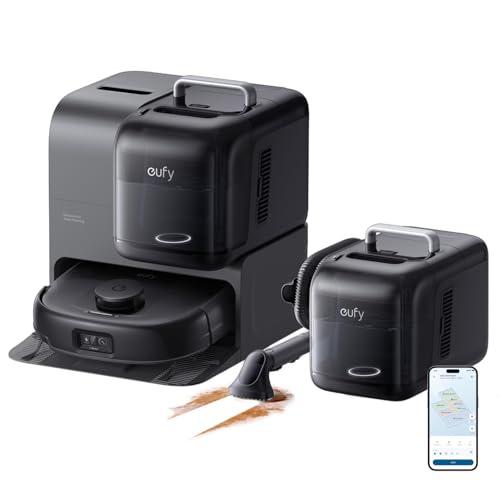
eufy E28 robot vacuum delivers 20000Pa suction, self-washing HydroJet mop, carpet deep cleaner & zero-tangling brushes. Shop now for hands-free clean.

iRobot Roomba Vac Q0120 robot vacuum with 3-stage cleaning, 120-min runtime & Alexa support. Self-charging & app-controlled. See why 50,000+ owners love it!

Shark IQ robot vacuum empties itself for 45 days, maps your home, and features a self-cleaning brushroll. Perfect for pet hair. Works with Alexa. Shop now!
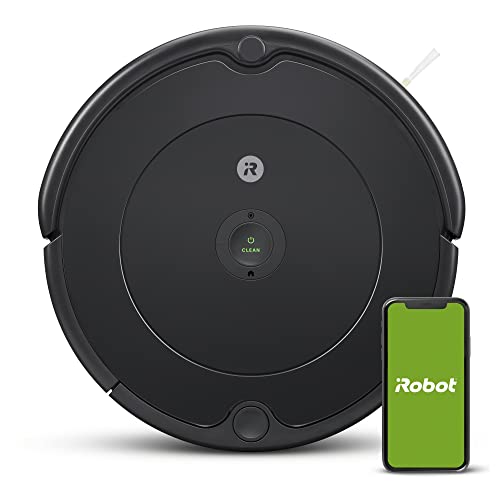
The iRobot Roomba 694 self-charges, navigates around furniture, and tackles pet hair on carpets and hard floors. Shop now for smarter daily cleaning.

DEEBOT T50 MAX PRO features 18,500Pa suction, auto hot-water mop washing & 12-in-1 Omni Station. Hands-free cleaning redefined. Shop on Amazon!
Ready to Find Your Perfect Vacuum?
Browse our expertly reviewed vacuum cleaners and make an informed decision
Browse All Vacuums